> ## Documentation Index
> Fetch the complete documentation index at: https://docs.lomaplatform.com/llms.txt
> Use this file to discover all available pages before exploring further.
# Toast
> Get up and running with LOMA's integration with Toast.
## Introduction
LOMA can automatically sync your sales data with Toast.
It works by using Toast's [Data Exports](https://central.toasttab.com/s/article/Automated-Nightly-Data-Export-1492723819691) feature.
When configured, LOMA will pull and sync the available data on a daily basis.
### Quick Start
 ## Setup Guide
### Configuring Exports
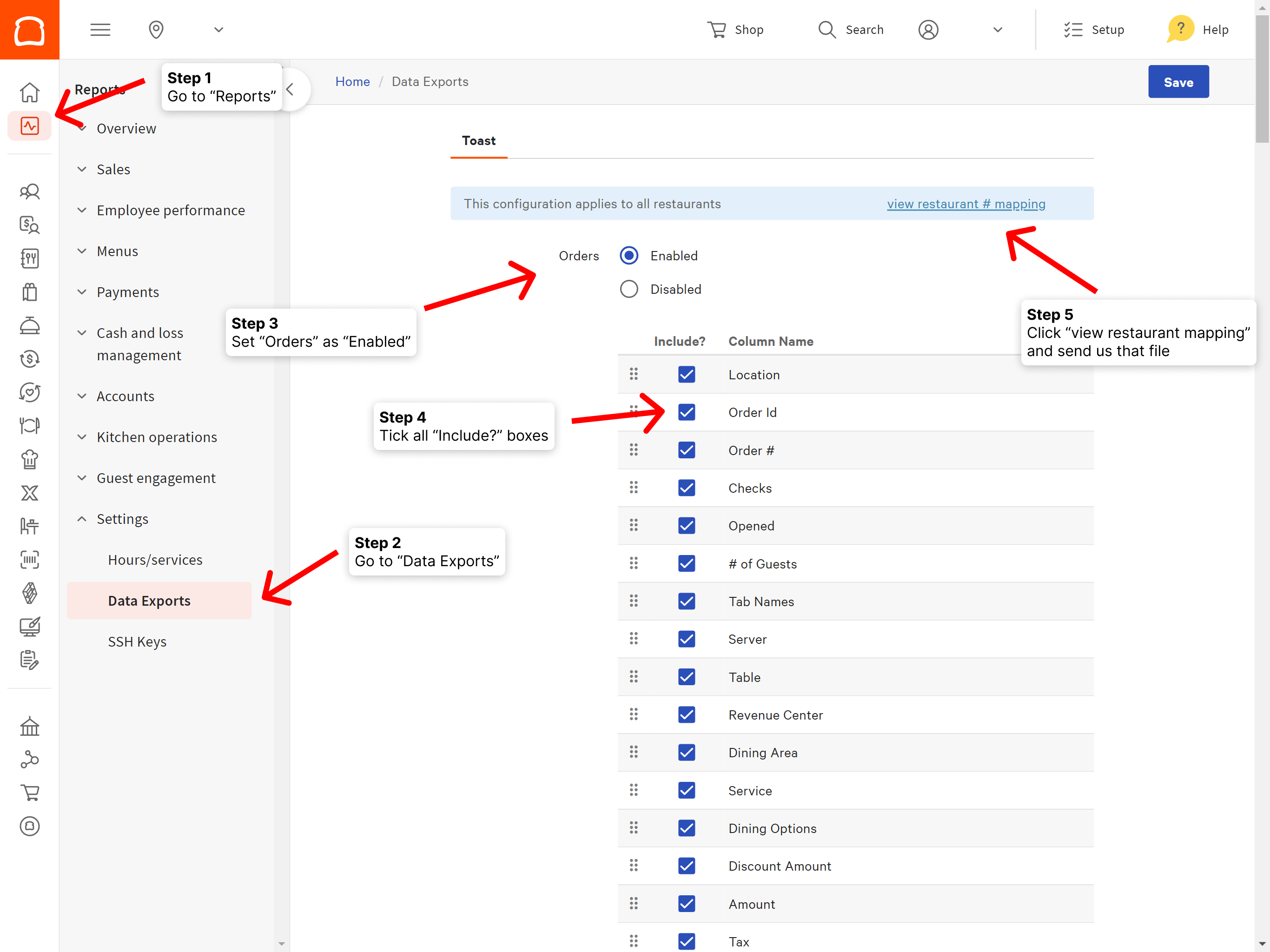
Before we can start pulling data, you must first have exports configured on your Toast account:
Only users with the `Data Export Config` permission on Toast can modify these settings.
1. Log in to your [Toast](https://pos.toasttab.com/) account.
2. Navigate to **Reports → Settings → Data Exports**.
3. Select **Enabled** next to "Orders" and tick all **include** checkboxes.
4. **Save** your changes.
5. Click **view restaurant # mapping** and send us that file.
We will use it to map your locations on LOMA to your locations in Toast.
Without it, we won't be able to sync the data.
You can also manually update the **Toast ID** of your locations via the [LOMA Console](https://console.lomaplatform.com).
### Granting Access
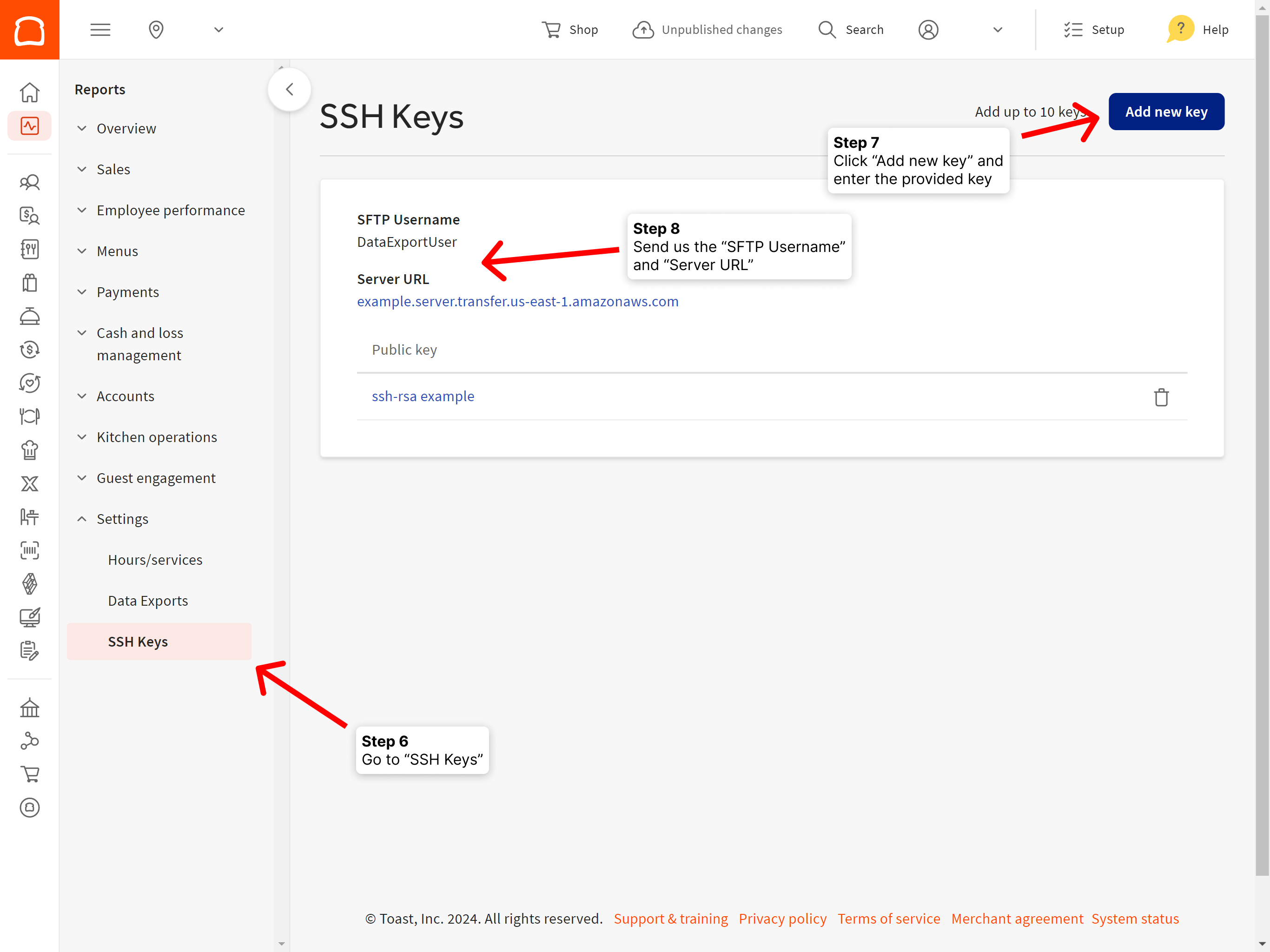
To give LOMA access to your data, add our public SSH key to your Toast account:
1. Log in to your [Toast](https://pos.toasttab.com/) account.
2. Navigate to **Reports → Settings → SSH Keys**.
3. Click **Add new key** and paste in our key:
```
ssh-rsa AAAAB3NzaC1yc2EAAAADAQABAAACAQCU7ig51e5YvBaOQSN9OkW3/YmHWooYMxYeo9zF88kz4q1Z0NsLVYdM539Bj9cK+H1I5DCEQEIOLrn03/EmRnQfWooIo5HLy7SYzwImI5Pl/l54Q1gEw9ZoKz4iVl9HM6A9AgvC2tKlLbMX/0aRgqTLT6g0ejNGhlJn3XdbGaNazpcRN3tCmTqd/2mlqdcY/qGtfH3uvF5F0z5qXPgy9085wPJFjT7M0AXPGG7KXwrEEQ7uzkiEip5XZOB4DL8ElQEzQ5RcQYoPnM2Mnmw8exXZ25lu/WWxq6fgC5yLXoTXIvNqF+3rX3iMi3FYoHEZN7k0ytC8CoXXdQuscyII4hQ4KSJ1KD+4pr5FUbMO8/sAhKNqC/6x5KiYTjwQhot+u3+ngL0880RHqMPm6MsDxKld/xCftY2E1x5PodrRp9JVhNlvOKlft9UnNbUyP7DEhXn8XKHo3LssGQChJdmhcnAK4CHF2CCaX+qxnpRnmY3wdH+FjYT3IHrpkSEY781TmZbO+Y99Jxuy9k8SH3ZnCvAt5YLilTHT/IdcBdgPC6CFcVbDn5Uqomhbm0EJu/c2jX9behe0RGKYn9nmSulS3QZEyINy3w+S7xNAqq6nckxPPazELS6JHHpH0ZoBcRCEizyT6oaqCwehylB8Tszqs1PuRF/IzrPmRscfZ+oQx0rgnw==
```
### Finishing Up
Once your exports are set up and LOMA has been granted access, enable the integration:
1. Log in to your [Toast](https://pos.toasttab.com/) account.
2. Navigate to **Reports → Settings → SSH Keys**.
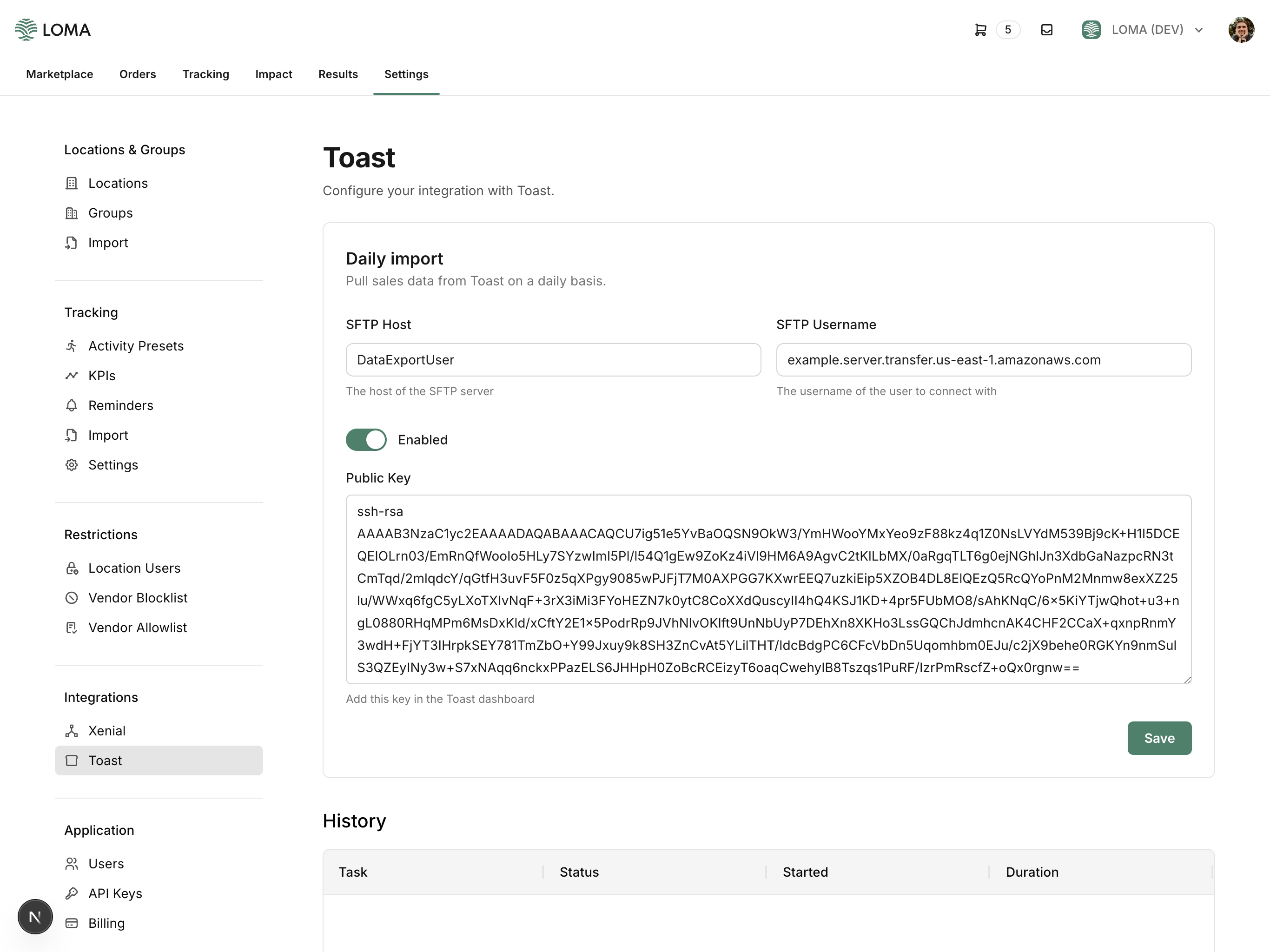
3. In a separate tab, log in to your [LOMA](https://console.lomaplatform.com) account.
4. Navigate to **Settings -> Toast**.
5. Copy and paste the **SFTP Username** and **Server URL** from Toast.
6. Ensure **Enabled** is turned on and then click **Save**.
Once that's done, you're all set!
Sales data will start to flow through every day. This is not an immediate process, however.
Expect to wait at least a day before starting to see data in LOMA.
Your settings on LOMA should look like this:
## Setup Guide
### Configuring Exports
Before we can start pulling data, you must first have exports configured on your Toast account:
Only users with the `Data Export Config` permission on Toast can modify these settings.
1. Log in to your [Toast](https://pos.toasttab.com/) account.
2. Navigate to **Reports → Settings → Data Exports**.
3. Select **Enabled** next to "Orders" and tick all **include** checkboxes.
4. **Save** your changes.
5. Click **view restaurant # mapping** and send us that file.
We will use it to map your locations on LOMA to your locations in Toast.
Without it, we won't be able to sync the data.
You can also manually update the **Toast ID** of your locations via the [LOMA Console](https://console.lomaplatform.com).
### Granting Access
To give LOMA access to your data, add our public SSH key to your Toast account:
1. Log in to your [Toast](https://pos.toasttab.com/) account.
2. Navigate to **Reports → Settings → SSH Keys**.
3. Click **Add new key** and paste in our key:
```
ssh-rsa AAAAB3NzaC1yc2EAAAADAQABAAACAQCU7ig51e5YvBaOQSN9OkW3/YmHWooYMxYeo9zF88kz4q1Z0NsLVYdM539Bj9cK+H1I5DCEQEIOLrn03/EmRnQfWooIo5HLy7SYzwImI5Pl/l54Q1gEw9ZoKz4iVl9HM6A9AgvC2tKlLbMX/0aRgqTLT6g0ejNGhlJn3XdbGaNazpcRN3tCmTqd/2mlqdcY/qGtfH3uvF5F0z5qXPgy9085wPJFjT7M0AXPGG7KXwrEEQ7uzkiEip5XZOB4DL8ElQEzQ5RcQYoPnM2Mnmw8exXZ25lu/WWxq6fgC5yLXoTXIvNqF+3rX3iMi3FYoHEZN7k0ytC8CoXXdQuscyII4hQ4KSJ1KD+4pr5FUbMO8/sAhKNqC/6x5KiYTjwQhot+u3+ngL0880RHqMPm6MsDxKld/xCftY2E1x5PodrRp9JVhNlvOKlft9UnNbUyP7DEhXn8XKHo3LssGQChJdmhcnAK4CHF2CCaX+qxnpRnmY3wdH+FjYT3IHrpkSEY781TmZbO+Y99Jxuy9k8SH3ZnCvAt5YLilTHT/IdcBdgPC6CFcVbDn5Uqomhbm0EJu/c2jX9behe0RGKYn9nmSulS3QZEyINy3w+S7xNAqq6nckxPPazELS6JHHpH0ZoBcRCEizyT6oaqCwehylB8Tszqs1PuRF/IzrPmRscfZ+oQx0rgnw==
```
### Finishing Up
Once your exports are set up and LOMA has been granted access, enable the integration:
1. Log in to your [Toast](https://pos.toasttab.com/) account.
2. Navigate to **Reports → Settings → SSH Keys**.
3. In a separate tab, log in to your [LOMA](https://console.lomaplatform.com) account.
4. Navigate to **Settings -> Toast**.
5. Copy and paste the **SFTP Username** and **Server URL** from Toast.
6. Ensure **Enabled** is turned on and then click **Save**.
Once that's done, you're all set!
Sales data will start to flow through every day. This is not an immediate process, however.
Expect to wait at least a day before starting to see data in LOMA.
Your settings on LOMA should look like this:
 ## Need Help?
If you run into any issues with this process, refer to the [Toast documentation](https://central.toasttab.com/s/article/Automated-Nightly-Data-Export-1492723819691).
If you are still having issues, [contact us](mailto:support@lomaplatform.com).
## Limitations
Toast only keeps data for the past 7 days in the data export server.
You'll need to use a different source if you want to import historical sales data.
We are able to ingest historical data from data warehouses, spreadsheets, or other sources.
[Contact us](mailto:support@lomaplatform.com) to find a solution that works for you.
## Need Help?
If you run into any issues with this process, refer to the [Toast documentation](https://central.toasttab.com/s/article/Automated-Nightly-Data-Export-1492723819691).
If you are still having issues, [contact us](mailto:support@lomaplatform.com).
## Limitations
Toast only keeps data for the past 7 days in the data export server.
You'll need to use a different source if you want to import historical sales data.
We are able to ingest historical data from data warehouses, spreadsheets, or other sources.
[Contact us](mailto:support@lomaplatform.com) to find a solution that works for you.